Shopify Customer Events and Pixels: Check Your Tracking Isn't Throttled
Shopify runs ad pixels through Customer events. How app and custom pixels differ, why the Optimized data setting can quietly cut events, and how to check yours.
On this page
Shopify runs tracking pixels through Customer events, in Settings: app pixels are added by apps such as Meta's and Google's sales channels, and custom pixels are code you add yourself. Since January 2026, new app pixels default to an "Optimized" data sharing mode in which Shopify can limit the events a pixel receives. If platform-reported purchases have been drifting below your Shopify orders, check each important app pixel and consider setting it to "Always on".
Key takeaways
- Customer events is where Shopify manages app pixels and custom pixels, in a sandbox, under your privacy settings.
- From 13 January 2026, newly installed app pixels default to Optimized data sharing, and some existing ones may be too.
- In Optimized mode, Shopify can restrict or pause a pixel's events, gradually and without an alert.
- Check under Settings, Customer events, App pixels, in the Data column, and switch key pixels to Always on.
- Old "additional scripts" on the thank-you page stopped running when non-Plus stores were upgraded around 26 August 2026.
How Shopify tracking works now
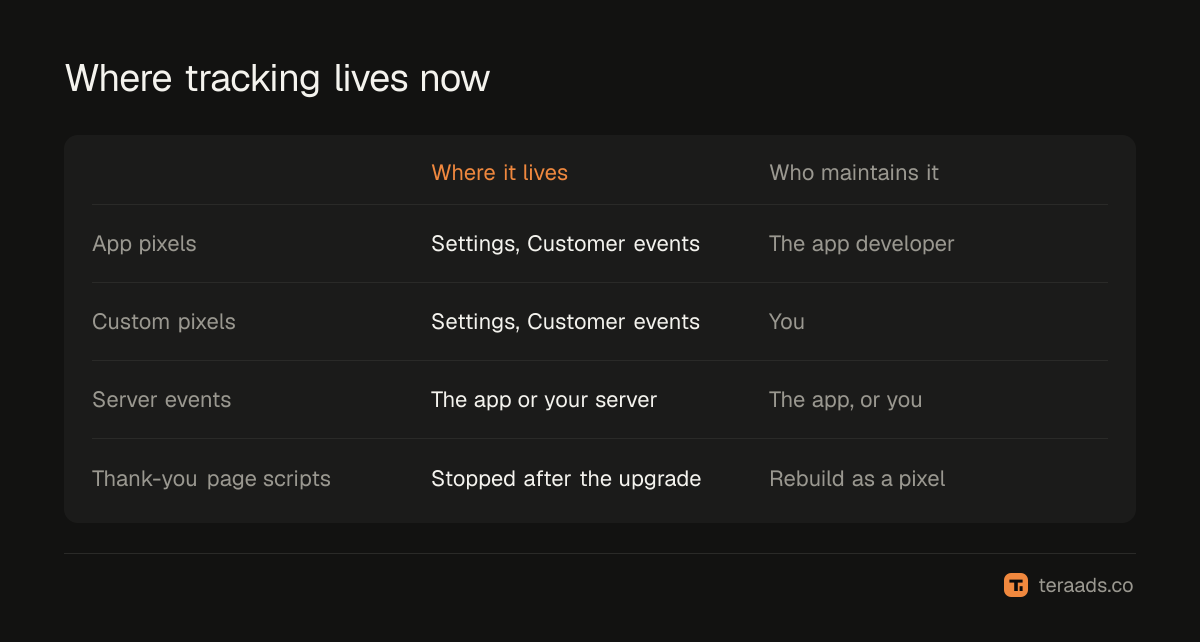
Shopify no longer expects you to paste tracking code into the theme or checkout. Instead, browser events such as page views, add to cart, checkout started and purchase are published as customer events, and pixels subscribe to them. Pixels run in a sandbox, which keeps checkout fast and secure, and they follow the store's customer privacy settings.
| App pixels | Custom pixels | |
|---|---|---|
| Added by | Apps, such as the Facebook & Instagram or Google & YouTube apps | You, as code in the Customer events settings |
| Maintained by | The app developer | You |
| Data sharing setting | Optimized or Always on | Runs as written; no optimisation mode |
| Typical use | Meta pixel, Google tags, other ad platforms | Platforms without an app, or custom analytics |
Server-side integrations, such as Meta's Conversions API sent by the Facebook & Instagram app, are separate from browser pixels. The Conversions API guide covers that side.
The Optimized data sharing default
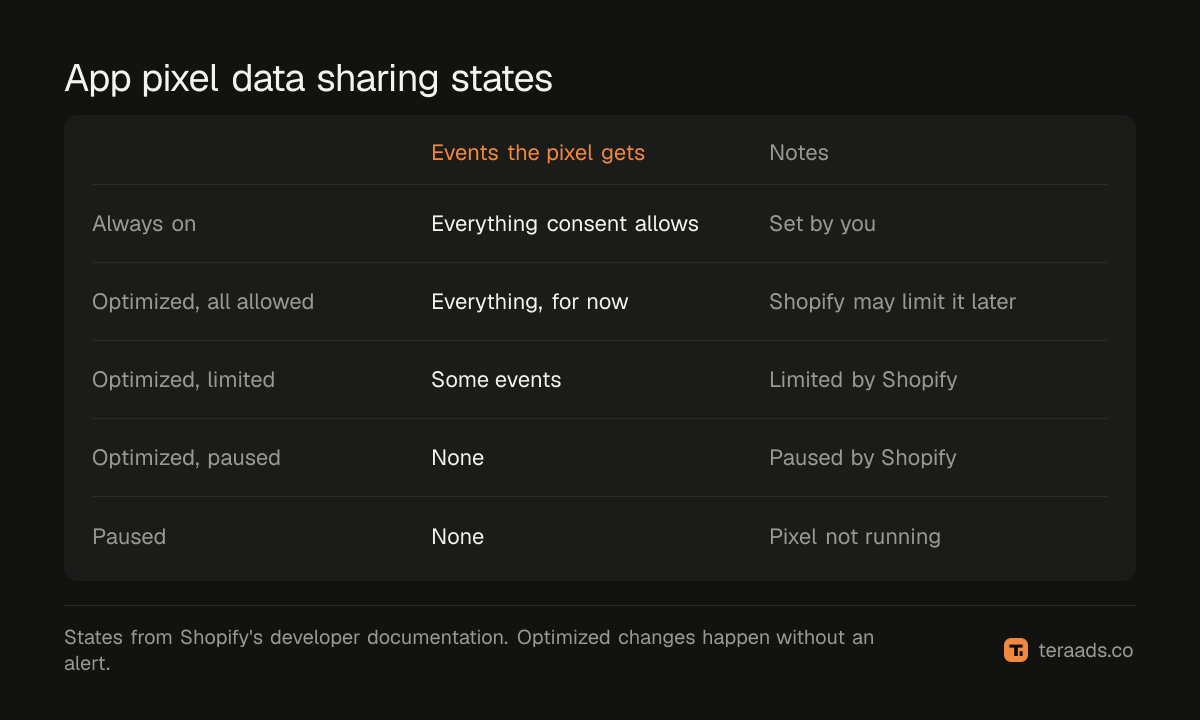
On 13 January 2026 Shopify introduced a new default for app pixels, according to tracking specialists who documented the change. Newly installed app pixels start in Optimized mode, and some existing pixels were moved to it depending on when they were installed. Shopify's developer documentation lists the possible states: always on, optimized with all events allowed, optimized with limited events, optimized with all events paused, and paused.
In Optimized mode, Shopify watches whether a pixel appears to contribute to results and can limit or pause the events it receives. The change is gradual and doesn't raise an alert. The usual symptom is a slowly widening gap between Shopify orders and the purchases Meta or Google report, not a sudden drop.
Checking your pixels, step by step
- Open Customer events. In Shopify admin, go to Settings, then Customer events, then the App pixels tab.
- Read the Data column. Each app pixel shows its current data sharing mode.
- Decide which pixels matter. Your Meta and Google pixels drive ad optimisation; other marketing apps may matter less.
- Switch key pixels to Always on. Click the setting in the Data column, choose Always on and apply.
- Check custom pixels. Make sure each one is connected and that you know what it does; remove old ones.
- Place a test order and confirm one purchase arrives in Meta Events Manager and Google Ads, with the right value.
Always on still respects customer privacy and consent settings; it stops Shopify's optimisation from throttling the pixel. Weigh any privacy obligations in the regions you sell to before changing it.
The thank-you page upgrade
Shopify moved its Thank you and Order status pages to the newer, extensible checkout. Plus stores went first, in 2025. For stores on other plans the deadline was 26 August 2026, after which Shopify upgraded remaining stores automatically. Scripts pasted into the order status page's "additional scripts" box stopped running after the upgrade.
If your store relied on those scripts for purchase tracking, conversions may have dropped around that date while orders carried on normally. Rebuild that tracking with an app pixel, a custom pixel or a server-side integration. Google Ads conversion tracking on Shopify has the Google side.
Diagnosing a tracking gap
Compare a settled week of Shopify orders with the purchases Meta and Google report:
- A gradual gap since January 2026: check the app pixel's data sharing mode first.
- A sudden drop around late August 2026: look for thank-you page scripts that stopped running.
- A drop after an app change: reinstalling or updating an app can reset its pixel.
- More platform purchases than orders: look for duplicates, such as an app pixel plus an old custom pixel.
Some gap is normal, because platforms attribute differently; why Meta and Shopify disagree explains the usual causes. What matters is a change in the gap.
Consent banners and pixels
Your store's privacy settings decide when pixels may run. Where you collect consent, Shopify's cookie banner or a consent app records each visitor's choice, and pixels receive events according to it. If many visitors decline marketing cookies, browser pixels will see fewer events whatever their data sharing mode. That's expected, and it's another reason to send server-side events with consent and to treat Shopify's own orders as the truth for sales.
Common mistakes
Assuming tracking still works because orders do. Tracking failures are silent; check events, not orders.
Leaving key pixels in Optimized mode unknowingly. Check the Data column for every ad platform's pixel.
Keeping old custom pixels. They can duplicate purchases or break silently.
Forgetting server-side events. Browser pixels miss events; add the Conversions API and enhanced conversions.
Not testing after changes. Place a test order after any app, theme or checkout change.
Tera Ads uses Shopify orders as the truth for sales and shows Meta Ads and Google Ads results beside them, so a widening gap between store orders and platform purchases is easy to spot. It is free for one business.
Frequently asked questions
What are Shopify customer events?
Shopify's system for tracking: storefront and checkout events are published, and app pixels and custom pixels subscribe to them in a sandbox.
What does Optimized mean for a Shopify app pixel?
A data sharing mode, the default for new app pixels since January 2026, in which Shopify can limit or pause events sent to a pixel it judges unhelpful.
How do I set a Shopify pixel to Always on?
Go to Settings, Customer events, App pixels, click the setting in the pixel's Data column, choose Always on and apply.
Are custom pixels affected by the Optimized setting?
No. Custom pixels run as written and have no optimisation mode. Server-side integrations are also separate.
Why did my conversions drop in August 2026?
Stores not on Plus were upgraded to the new Thank you and Order status pages around 26 August 2026, and old additional scripts stopped running.