Merchant Center Misrepresentation Suspension: How to Fix It Properly
A misrepresentation suspension stops all Shopping ads. What Google's policy covers, the site and account fixes to make before asking for review, and what to avoid.
On this page
A Merchant Center misrepresentation suspension means Google decided your store or listings could mislead shoppers, and it disables all your products from Shopping until you fix the cause and pass a review. The usual triggers are missing or inconsistent business details, unclear policies, unsupported claims and prices or offers that don't match the site. Audit your site and account thoroughly, fix everything first, then request one careful review, because repeated failed reviews lengthen the wait.
Key takeaways
- A suspension disables all products from Shopping surfaces and stops Shopping ads, per Google's help pages.
- Google may review your listings, website, accounts and third-party information when judging misrepresentation.
- Serious cases can be suspended without warning; others get a warning email with a deadline.
- Fix business identity, policies, prices and claims before requesting review.
- Each unsuccessful review can lengthen the cool-down before you can ask again.
What the policy covers
Google's Misrepresentation policy, checked on 8 October 2026, aims for listings that are clear, honest and give shoppers the information they need. It prohibits things such as presenting a false identity, business name or contact information, and hiding or misrepresenting material details about your business location or where products are fulfilled from. Google says it may look at your listing, website, accounts and third-party sources when deciding.
What a suspension does
According to Google's guide to fixing warnings and suspensions, a suspension disables all products from Shopping surfaces and stops Shopping ads. Less serious issues usually start with a warning email that explains the problem and gives time to fix it; egregious issues can lead to immediate suspension. Performance Max campaigns that rely on your feed lose their Shopping inventory too.
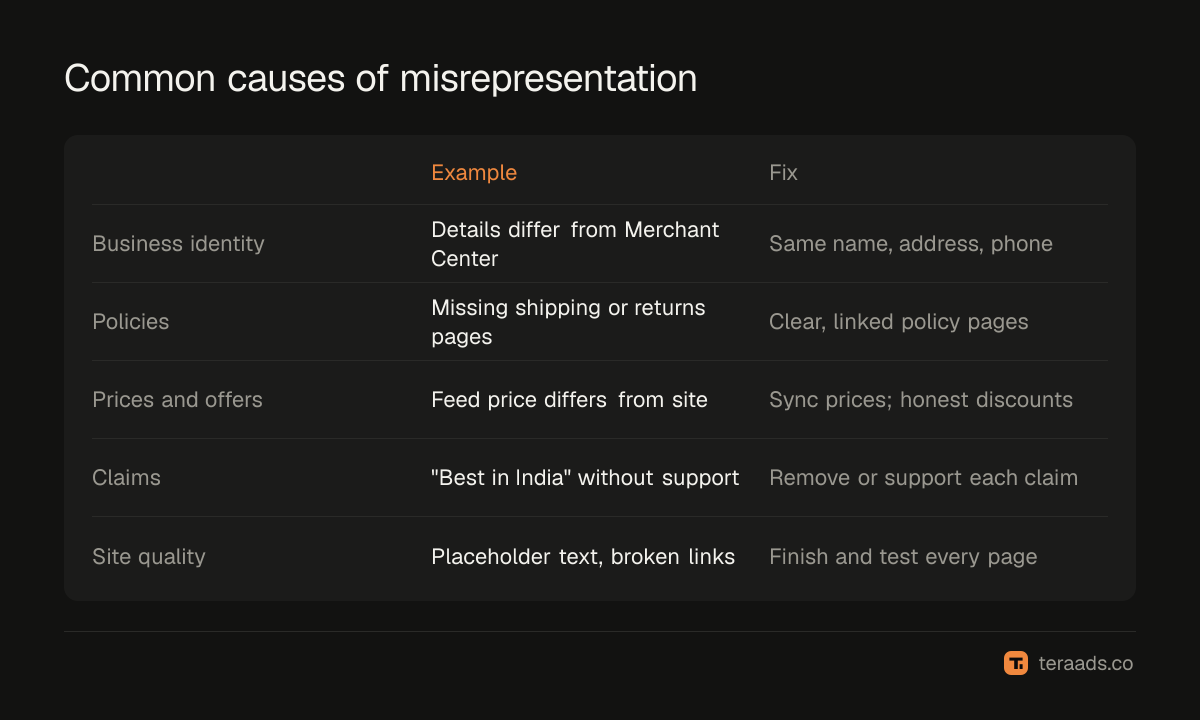
Common causes for D2C stores
| Problem | Example | Fix |
|---|---|---|
| Business identity | No address or phone, or details that differ from Merchant Center | Same legal name, address, phone and email everywhere |
| Policies | Missing or vague shipping, returns or refund pages | Clear, linked policy pages with real terms |
| Prices and offers | Feed price differs from site, or "sale" without a real reference | Sync prices; honest discounts |
| Claims | "Best in India", "guaranteed results" without support | Remove or support every claim |
| Site quality | Placeholder text, broken links, empty pages | Finish and test every page |
Fixing it, step by step
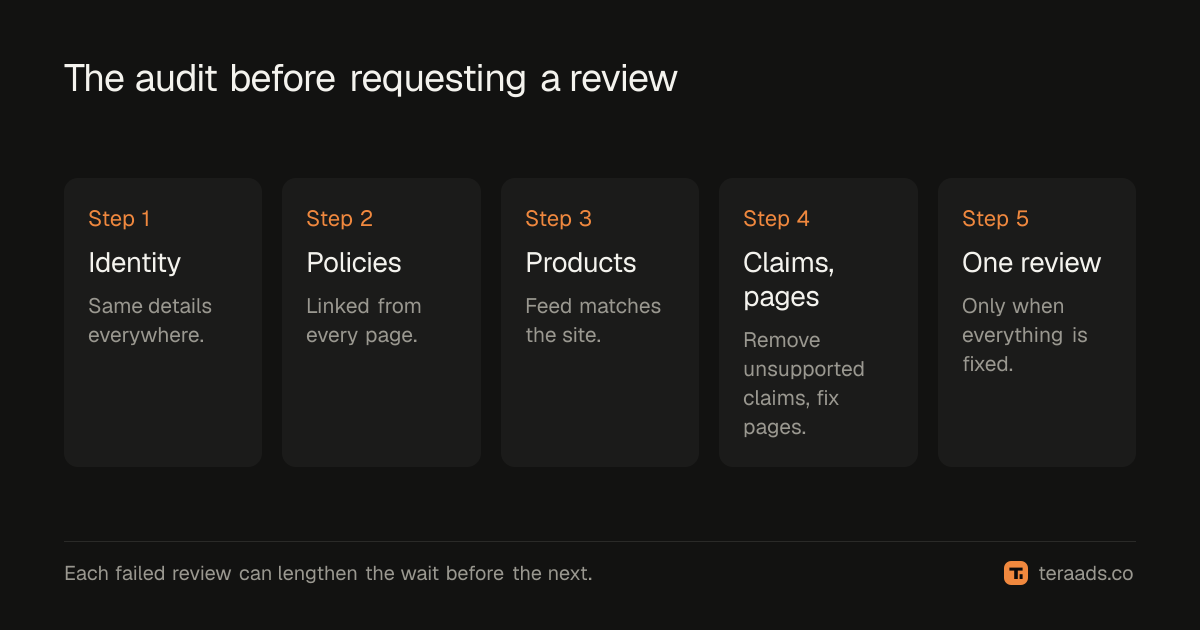
Google's guidance asks you to examine your website and account thoroughly before requesting a review. Work through:
- Business information. Make your legal business name, physical address, phone number and email consistent across the website, Merchant Center and Google Ads.
- Policies. Link shipping, returns, refund and privacy policies from every page, usually in the footer, with specific terms such as timelines and costs.
- Checkout and payment. Make sure checkout works, shows total cost including shipping before payment and uses secure payment.
- Products and prices. Check that feed prices, availability and images match the site; remove products you can't ship.
- Claims and reviews. Remove unsupported superlatives, fake urgency and reviews you can't verify.
- Site quality. Remove placeholder text, fix broken links and complete the About and Contact pages.
- Verification. Complete any identity or business verification Merchant Center asks for, with documents that match your account details.
- Request one review, only when everything is fixed.
Requesting the review
Google's help warns that accounts stay suspended if problems remain, and that each unsuccessful review can increase the cool-down period before you can ask again. Don't request a review after a partial fix. Keep a written record of every change and its date, so you know exactly what Google saw.
Avoiding it in the first place
- Keep the feed and site in sync, so prices and stock match; Shopify's Google channel helps, but check after big changes.
- Add policies and contact details before launching Shopping ads, not after a warning.
- Review ad copy, product titles and descriptions for claims you can't support; Merchant Center feed attributes covers feed quality.
- Fix disapproved products quickly, because product-level problems can grow into account-level ones.
A pre-review checklist for Shopify stores
Shopify stores share a few recurring gaps. Before requesting a review, go through these on a phone as well as a desktop:
- Policies. In Shopify, store policies live under Settings, then Policies. Replace any template text with your real terms, then add the policy pages to the footer menu so they appear on every page.
- Contact page. Show a business address, phone number and email, matching what's in Merchant Center. A contact form alone may not be enough.
- About page. Say who runs the business and where it's based. Empty or generic pages undermine trust.
- Store name. Use the same business name on the site, in Merchant Center and in Google Ads.
- Password page and test products. Remove any leftover password protection, test products and placeholder collections.
- Prices. Spot-check feed prices against product pages, including variants and sale prices.
- Claims. Search the store for words like "best", "guaranteed", "100%" and "certified", and support or remove each one.
- Checkout. Place a test order up to the payment step to confirm shipping costs and taxes are shown clearly before payment.
Then write a short record of what you changed and when. If the first review fails, that record helps you see what Google may still object to, instead of guessing.
Common mistakes
Requesting review immediately. A failed review lengthens the wait.
Fixing only what the email mentions. Google reviews the whole site and account.
Inconsistent details. A different phone number on the site and in Merchant Center is enough to raise doubt.
Paying "fixers" to guess. Blind edits and rushed reviews make it worse.
Ignoring warnings. They usually come before suspensions.
Tera Ads includes a deep dive into disapproved Google Shopping products alongside Shopify sales, Meta Ads and Google Ads spend and profit after RTO from Shiprocket for every campaign. It is free for one business.
Frequently asked questions
What is Merchant Center misrepresentation?
A policy violation where Google judges that a store or its listings could mislead shoppers, for example through unclear identity, policies or claims.
What happens when Merchant Center is suspended?
All products are disabled from Shopping surfaces and Shopping ads stop until the issue is fixed and a review succeeds.
How do I fix a misrepresentation suspension?
Make business details consistent, add clear policies, sync prices, remove unsupported claims, fix site quality, then request one review.
How long does a Merchant Center review take?
It varies. Each unsuccessful review can lengthen the cool-down before another request.
Can I get a warning before suspension?
Often, yes. Less serious issues usually get a warning email with a deadline; egregious ones can be suspended immediately.