How to See Your Shopify Sales in the Mac Menu Bar
Put today's Shopify sales, profit, ad spend and orders in your Mac menu bar: what to show, how to set it up in a few steps, and the other ways to keep an eye on sales.
On this page
The quickest way to see your Shopify sales on a Mac is a menu bar app: today's sales sit next to the clock, and one click shows profit, ad spend and orders. Tera Ads for Mac does this from the same account as the Tera Ads web dashboard, for today, yesterday, 7 or 30 days. It runs on macOS 14 or later, and setup takes a sign-in and a choice of business.
Key takeaways
- A menu bar number gets checked; a dashboard in a closed tab doesn't.
- Show sales, but pair them with ad spend and estimated profit, or sales alone mislead.
- Compare completed periods: today against the same point yesterday is noise.
- One account should give the same numbers on the Mac, the web and your phone.
- Keep the deep work in the full dashboard; the menu bar is for the glance.
Why the menu bar
Most owners check sales many times a day, usually by opening Shopify on a phone or a browser tab. Each check costs a few taps and a context switch, and none shows what the sales cost in ads. A number in the menu bar costs nothing to look at. You see it while you work, and you notice when something's off long before an end-of-day report would tell you.
The catch is choosing the right number. Sales are the obvious one, but a day with record sales and record ad spend can still lose money. The useful glance pairs sales with what you spent to get them and what's left, which is the idea behind Shopify profit tracking.
What to show at a glance
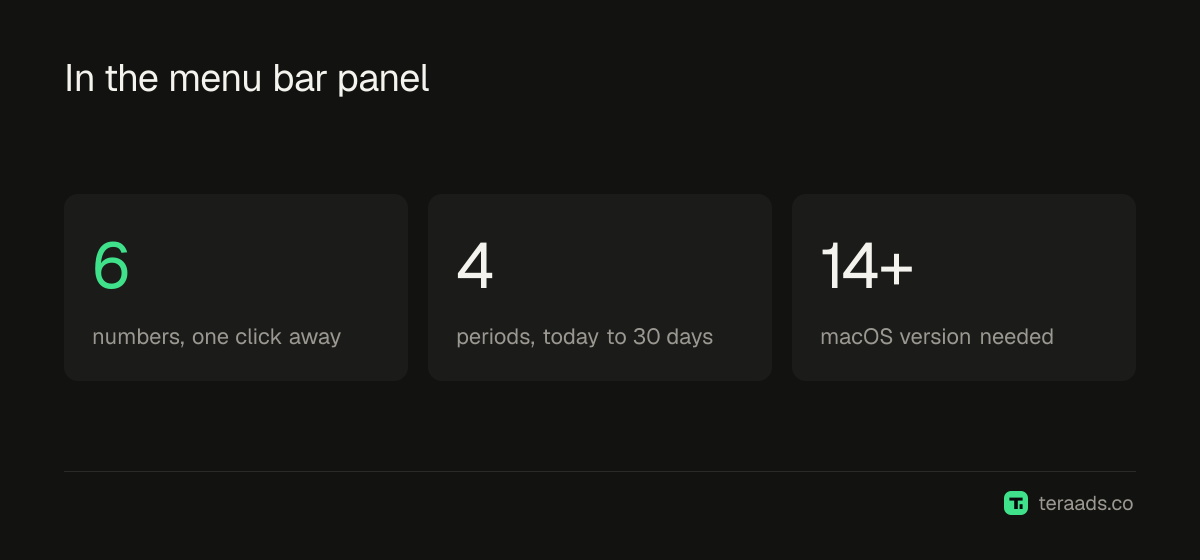
Tera Ads for Mac keeps today's sales in the menu bar. Click it and a panel opens with six numbers for the period you pick:
- Estimated profit: store sales minus product cost, ad spend, shipping, fees, returns and refunds.
- Ad spend: Meta and Google Ads together.
- Orders: from your Shopify store.
- Return on ads: store sales divided by ad spend, the store-wide view also called MER.
- Average order: sales divided by orders.
- Returned: the share of orders that came back.
Each number shows its change against the previous period of the same length, with a small trend line. The periods are today, yesterday, 7 days and 30 days, and every amount is in your store's currency and its days in your store's time zone.
How to set it up
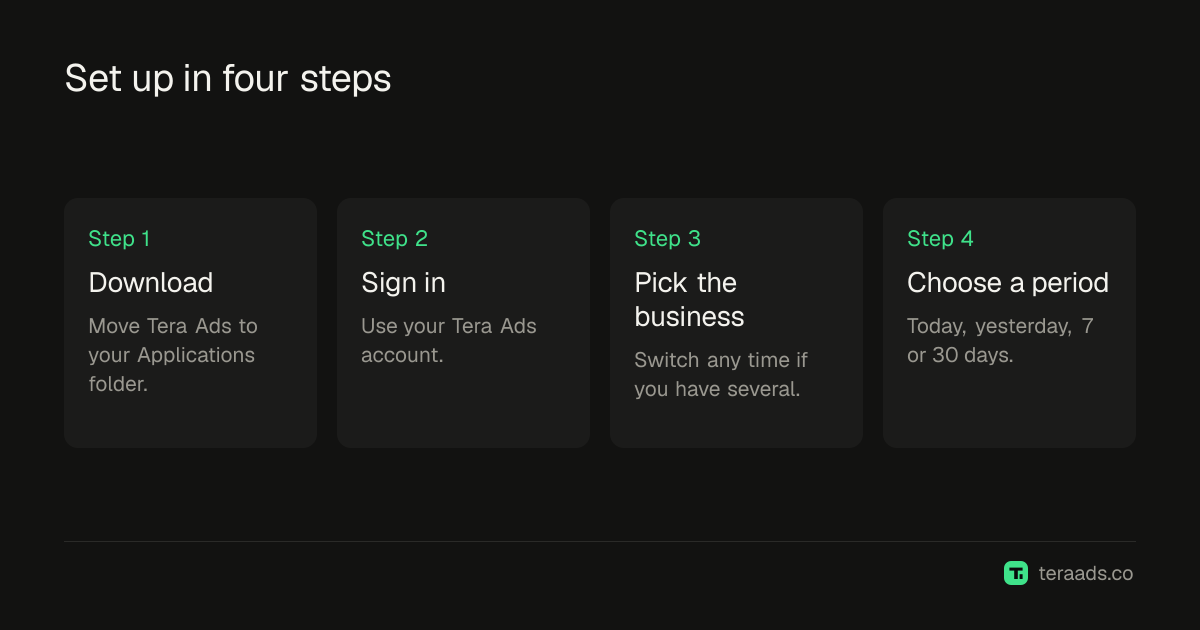
- Download the app. Get Tera Ads for Mac from the Tera Ads website and move it to your Applications folder. It needs macOS 14 or later.
- Sign in. Open it and sign in with your Tera Ads account. If you don't have one, start free on the web and connect Shopify first.
- Pick the business. If your account has several businesses, choose which one the menu bar shows. You can switch later.
- Choose a period. Today is the default. Switch to yesterday, 7 or 30 days in the panel.
- Open the full window when you need more. The app also has a full window with Home, Ads, Sales and Connections; press ⌘K to jump to a section or another business.
Shopify, Meta Ads and Google Ads are connected once in the web dashboard, and the Mac app reads the same numbers. Nothing extra is installed on your store.
Other ways to watch sales on a Mac
| Option | Shows sales | Shows ad spend and profit | Setup |
|---|---|---|---|
| Tera Ads for Mac | Yes, in the menu bar | Yes, estimated profit after returns | Download and sign in |
| Shopify admin in a browser tab | Yes | Sales only, unless you add reports | None |
| Shopify mobile app | Yes, with order notifications | Sales only | Install on your phone |
| A script in a menu bar tool such as xbar or SwiftBar | Whatever you code | Only if you code it | Write and maintain a script |
A pinned browser tab is free and always works, but it shows sales without the ad spend behind them. The Shopify mobile app is good for new-order alerts and is on your phone, not your desk. A home-made script can show anything, and you'll be the one fixing it when an API changes.
Worked example: reading the panel
It's 3 p.m. on a Tuesday. The menu bar shows $1,240 in today's sales. Click it and you see $410 of ad spend so far, 21 orders and estimated profit of $230. Sales look fine, but switch to yesterday: $2,180 in sales, $560 of ad spend, $510 profit.
Today isn't over, so don't compare the two directly. Instead, switch to 7 days. Return on ads over the week is 3.4×, against 3.9× for the 7 days before, and the returned share has crept up from 6% to 9%. That's worth a look in the full dashboard: which campaigns spent most this week, and whether one product is coming back more than usual.
These are made-up numbers for an example store. The habit is the point: glance at today, then judge on completed periods.
Common mistakes
Watching sales without spend. A rising number can hide a rising cost. Keep ad spend and profit one click away.
Judging today at noon. Half a day against a full day always looks bad. Use yesterday, 7 or 30 days to decide anything.
Different numbers in different places. If the Mac, the web and your spreadsheet disagree, you'll stop trusting all three. Use one source.
Reacting to every wobble. Daily sales swing by chance. The daily numbers check shows which moves are worth acting on.
Tera Ads for Mac comes with every Tera Ads account, free plan included. See what it shows or start free.
Frequently asked questions
Is there a Shopify app for the Mac menu bar?
Yes. Tera Ads for Mac shows today's Shopify sales in the menu bar, and a click opens profit, ad spend, orders, return on ads, average order and returned share for today, yesterday, 7 or 30 days.
Does it work with more than one store?
Yes. If your Tera Ads account has several businesses, you can switch between them, and each one shows in its own currency.
Which macOS version do I need?
macOS 14 or later.
Do I need to install anything on my Shopify store?
No. Shopify is connected once from the Tera Ads web dashboard, and the Mac app reads the same account.
Does the Mac app cost extra?
No. It comes with every Tera Ads account, including the free plan for one business.
Are the numbers the same as the web dashboard?
Yes. The app signs in to the same account, so the menu bar, the full window and the web dashboard show the same numbers.