How to Set Up Google Shopping Ads on Shopify, Step by Step
Set up Google Shopping for a Shopify store: the Google & YouTube app, Merchant Center, a clean feed, conversion tracking, the right campaign type and a profit target.
On this page
To run Google Shopping ads on Shopify, install Google's Google & YouTube app, connect Merchant Center and Google Ads, and let it sync your products and set up purchase tracking. Then fix the feed until products are approved, check that each order is counted once, and launch a Performance Max or standard Shopping campaign with "maximize conversion value". Add brand exclusions, set a target ROAS above break-even once it has a few weeks of data, and judge it on Shopify orders after returns.
Key takeaways
- The Google & YouTube app connects Shopify to Merchant Center and Google Ads, syncs products and sets up purchase tracking.
- Merchant Center needs a working store with clear shipping, returns and contact details, or products won't show.
- Feed quality decides which searches your products appear for: titles, attributes, prices and approvals.
- Keep one primary purchase conversion action, or automated bidding learns from doubled sales.
- Start with "maximize conversion value", then set a target ROAS above break-even after a few weeks.
The setup, step by step
- Install the Google & YouTube app. In Shopify, add Google's sales channel app and connect your Google account.
- Connect Merchant Center and Google Ads. Create or link a Merchant Center account and a Google Ads account from the app.
- Meet Merchant Center's store requirements. Publish shipping and returns policies, contact details and accurate prices, so the store passes review.
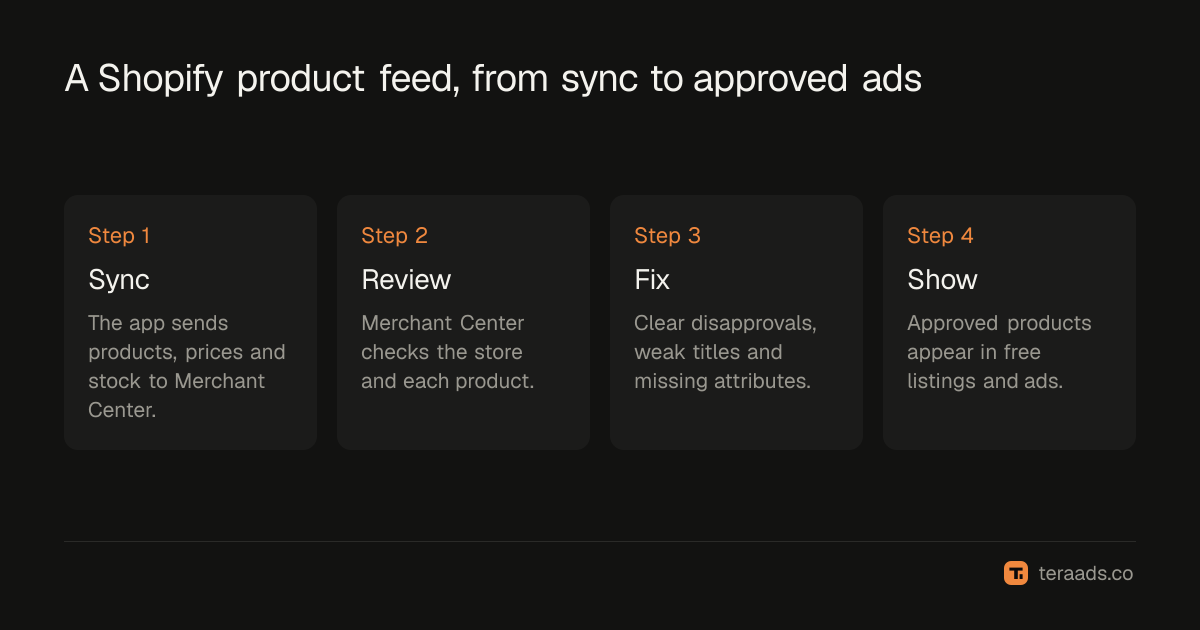
- Sync products and fix the feed. Let the app send products, then fix disapprovals, titles and missing attributes in Merchant Center.
- Check conversion tracking. Confirm the app's purchase conversion is the only primary purchase action, with order values.
- Choose a campaign type. Performance Max for reach across Google, or a standard Shopping campaign for more control over Shopping alone.
- Bid for value, then set a target. Start with maximize conversion value, then add a target ROAS above break-even once it has data.
- Exclude your brand and review weekly. Add brand exclusions, check search terms and judge on Shopify orders after returns.
Steps 1 to 3: connect Shopify to Google
Google's Google & YouTube app is a Shopify sales channel. From inside Shopify it connects your Google account, a Merchant Center account and a Google Ads account. It sends your products to Merchant Center, keeps prices and stock in sync, and adds purchase tracking through Shopify's customer events, so you don't need tags in the theme.
Merchant Center reviews the store before products can show. It looks for things a shopper would expect: a working checkout, clear shipping costs and delivery times, a returns policy, contact details and prices on the site that match the feed. Missing or vague information is a common reason for account-level problems; Merchant Center misrepresentation covers that suspension and how to fix it.
Products approved in Merchant Center can also appear in free listings on the Shopping tab, before you spend anything on ads.
Step 4: the feed decides where products show
Shopping ads have no keywords. Google matches searches to products using the feed: the title, description, product type, brand, identifiers such as GTIN, and attributes such as color, size and material. A vague title means your products show for the wrong searches, or not at all.
| Feed field | Why it matters | Common fix |
|---|---|---|
| Title | The strongest signal for which searches match | Lead with what the product is, then brand, key attribute and variant |
| Product type and category | Groups products for bidding and matching | Set a clear product type in Shopify |
| GTIN and brand | Lets Google identify the product | Add barcodes where products have them |
| Color, size, material | Matches specific searches and filters | Fill variant options consistently |
| Price and availability | Must match the site, or products are disapproved | Keep the app syncing; avoid manual feed edits |
| Images | First thing shoppers see; policy rules apply | Clear product on a plain background, no promotional text |
Open Merchant Center's product diagnostics weekly. Disapproved products covers the common errors, Shopping titles shows title patterns that work, and Merchant Center feed attributes lists what to fill first.
Step 5: count each order once
Automated bidding learns from the conversions you track. If two primary purchase actions record the same order, such as the app's purchase conversion and an older tag or an imported GA4 purchase, Google sees twice the sales and bids for clicks that don't really pay.
In Google Ads, open Goals, then Conversions, and keep one primary purchase action with order values. Compare Google's purchase count with Shopify orders from Google for a week; they won't match exactly, but they should be close. Google Ads conversion tracking for Shopify walks through the setup and enhanced conversions.
Steps 6 to 8: campaign, bidding and brand
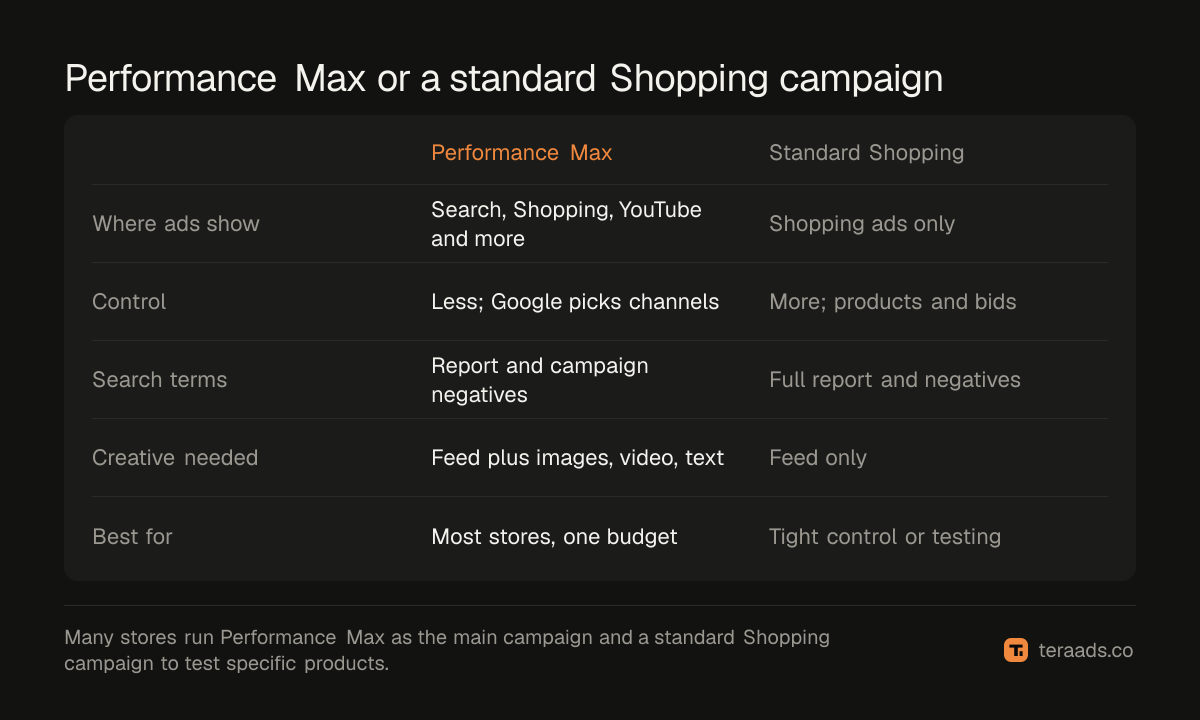
Performance Max runs one budget across Search, Shopping, YouTube, Display, Discover, Gmail and Maps, using your feed and the images, videos and text you give it. It is the default for most Shopify stores, and it now has campaign-level negative keywords, a search terms report and channel reporting. Performance Max for Shopify covers the setup, and is Performance Max profitable shows how to judge it.
A standard Shopping campaign shows only Shopping ads, with more control over products, bids and search terms. It suits stores that want to see exactly where money goes, or to run alongside Performance Max for specific products.
For bidding, start with maximize conversion value without a target. After a few weeks of purchases, set a target ROAS near what the campaign achieves and above your break-even ROAS. Target ROAS bidding explains how to change targets without starving the campaign.
Then add a brand exclusion, so Performance Max doesn't take credit for people already searching your store's name, and review the search terms each week. Judge results on Shopify orders from Google after returns, against break-even; how much Google Ads cost works through the sums.
Tera Ads connects Shopify, Google Ads and Meta Ads, and shows every campaign from both platforms in one table with the ROAS each platform reports, beside your store's profit after product costs, ad spend, shipping, payment fees, returns and refunds. It is free for one business.
Frequently asked questions
How do I connect Shopify to Google Shopping?
Install Google's Google & YouTube app in Shopify, connect your Google account, and link or create a Merchant Center account and a Google Ads account from the app. It syncs your products to Merchant Center and sets up purchase tracking.
Is Google Shopping free on Shopify?
Free listings are. Approved products can appear in the Shopping tab without ad spend. Shopping ads, in Performance Max or standard Shopping campaigns, are paid per click.
Why are my Shopify products not showing on Google Shopping?
Usually because products are disapproved or still under review, the store hasn't passed Merchant Center's checks, or the feed is missing required information. Check product diagnostics in Merchant Center first.
Should I use Performance Max or a standard Shopping campaign?
Most Shopify stores start with Performance Max, because it reaches buyers across Google with one budget. Use a standard Shopping campaign when you want tighter control over products and search terms, or to test against Performance Max.
How long does Google Shopping take to start working?
Merchant Center reviews can take a few days. Once ads run, give automated bidding a few weeks of purchases before judging profit or setting a target ROAS.
What ROAS should I target on Google Shopping?
One above your break-even ROAS: 1 divided by your contribution margin after product cost, shipping, payment fees and returns. With a 40% margin, that is above 2.5x, measured on Shopify orders after returns.